
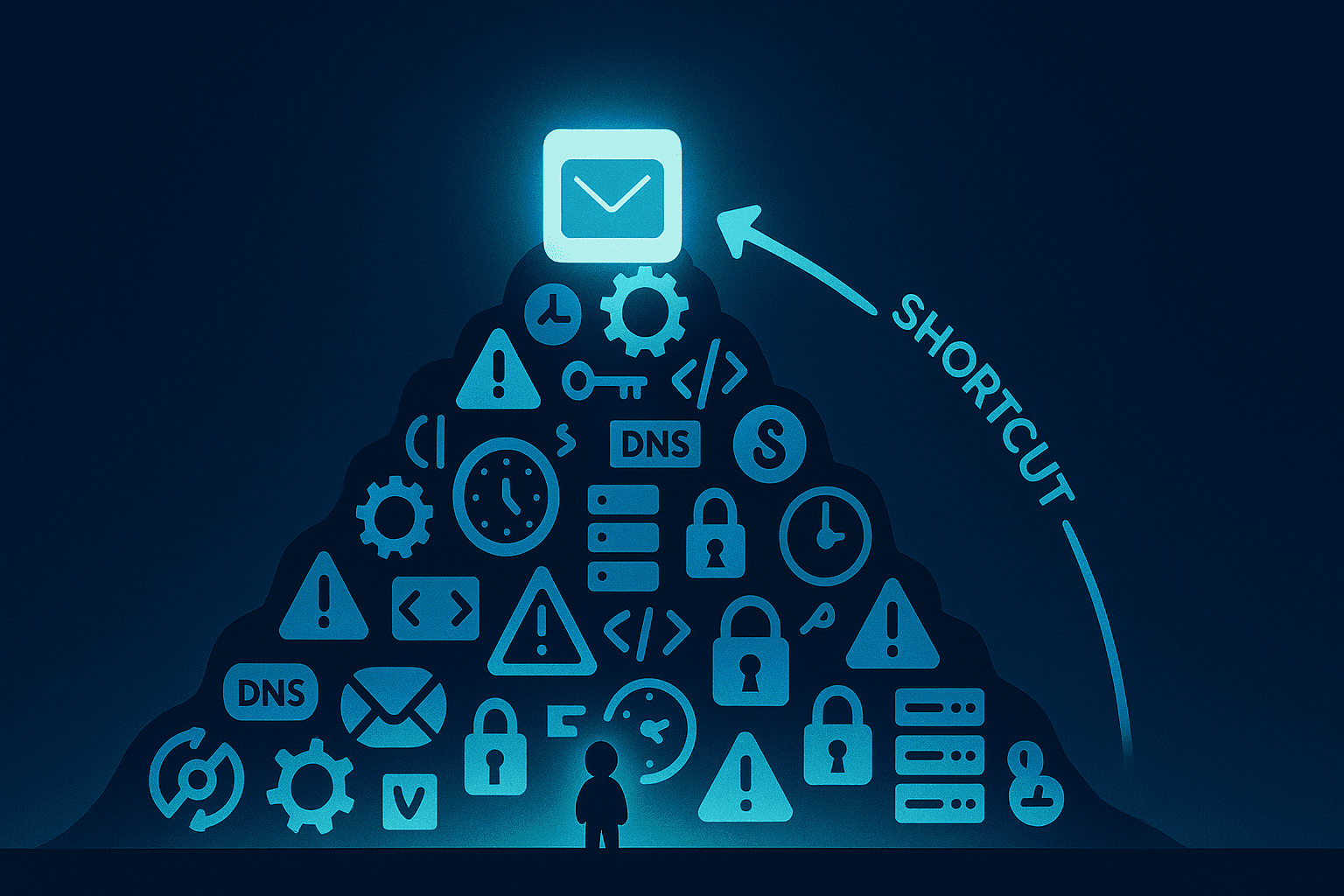
You've heard cold email works. You've seen the case studies. "We booked 47 meetings last month from cold outreach." Sounds great.
So you decide to set it up yourself.
Three weeks later, you're knee-deep in DNS records, watching tutorials about DKIM selectors, wondering why your emails are landing in spam, and questioning every life decision that led you here.
Cold email setup is genuinely complicated. Not "takes a few hours" complicated. More like "this is a full technical project that requires expertise in multiple domains" complicated.
This guide will show you exactly what's involved - every single step. Not to discourage you, but so you understand what you're getting into. And then we'll show you why Important Emails exists: to make all of this disappear so you can focus on what actually matters - getting positive replies.
Part 1: The Full DIY Cold Email Setup (Everything Required)
Let's walk through every step required to set up a proper cold email system from scratch.
Step 1: Domain Strategy and Purchasing
The Domain Quantity Problem
You can't send cold email from your main business domain. If things go wrong (and they often do), you'll destroy the reputation of your primary domain and suddenly your regular business emails land in spam too.
Solution: Buy dedicated sending domains.
But how many? Most experts recommend:
- Minimum: 5 domains
- Recommended: 10-15 domains
- Serious scale: 20+ domains
Each domain can safely send around 50-100 emails per day once warmed. Want to send 1,000 emails per day? You need at least 10 domains.
Choosing Domain Names
Your sending domains should:
- Look related to your brand (variations, not exact matches)
- Be believable as legitimate businesses
- Not trigger spam filters with sketchy words
- Have clean registration history
Examples for a company called "Acme Solutions":
- acme-team.com
- acmesolutions.co
- getacme.com
- tryacme.io
- acme-group.com
TLD Selection (Which Extension?)
Not all domain extensions are equal:
- .com - Best reputation, most trusted
- .co - Good alternative, widely accepted
- .io - Tech-friendly, good reputation
- .net - Acceptable, slightly lower trust
- .biz, .info - Higher spam association, avoid
Aged vs New Domains
New domains start with zero reputation. They require longer warmup and are more likely to hit spam filters initially.
Aged domains (previously registered) can have:
- Existing reputation (good or bad)
- Potential spam history you inherit
- Faster warmup if clean
The catch: Finding clean aged domains is difficult and expensive. Most people buy new.
The Registrar Question
Where you buy domains matters:
- Some registrars have spam-associated IP ranges
- Bulk purchasing can trigger fraud flags
- WHOIS privacy settings affect trust signals
Time required: 2-4 hours researching, selecting, and purchasing 10 domains.
Step 2: DNS Configuration
Every domain needs proper DNS setup. This is where most people make their first mistakes.
Nameserver Configuration
You need to point your domains to a DNS provider (Cloudflare, Route53, etc.). This involves:
- Creating an account with a DNS provider
- Adding each domain to the provider
- Changing nameservers at your registrar
- Waiting for propagation (24-48 hours)
For 10 domains: Repeat this process 10 times.
DNS Propagation
After changing nameservers, you wait. DNS propagation can take anywhere from 1 hour to 48 hours depending on:
- Your registrar's TTL settings
- Global DNS cache refresh cycles
- Your ISP's DNS caching
Reality: Plan for 24-48 hours of waiting before you can proceed.
MX Records
MX (Mail Exchange) records tell the internet where to deliver email for your domain. Without correct MX records, your email provider won't work.
Format varies by provider:
- Google Workspace: Multiple priority-based MX records
- Microsoft 365: Single MX record pointing to protection.outlook.com
- Other providers: Provider-specific configurations
TXT Records for Verification
Your email provider needs to verify you own each domain. This typically requires adding a TXT record with a verification code.
Process per domain:
- Request verification code from email provider
- Add TXT record to DNS
- Wait for propagation
- Verify in email provider dashboard
- Handle failures and retry
Time required: 4-8 hours for 10 domains (including propagation waits).
Step 3: Choosing an Email Provider
Here's a question that causes endless debate: Which email provider should you use?
Google Workspace
Pros:
- Excellent deliverability reputation
- Familiar interface
- Strong API support
- Good spam filter training
Cons:
- $6-12 per user/month
- Strict sending limits (500/day initially)
- Account suspension risk for cold email
- Complex setup for multiple domains
Microsoft 365
Pros:
- Professional reputation
- Better bulk sending tolerance
- Lower cost options
- Shared mailbox features reduce licensing costs
Cons:
- More complex configuration
- DKIM setup requires PowerShell or API calls
- Admin portal can be confusing
- Slower customer support
Other Providers (Zoho, Mailgun, SendGrid)
Pros:
- Often cheaper
- Some designed for bulk sending
- Simpler APIs
Cons:
- Lower inbox placement rates for cold email
- Recipients may not trust less common providers
- Variable reputation based on other users on shared infrastructure
The Verdict
Most serious cold emailers use Microsoft 365 or Google Workspace. The reputation of these providers helps deliverability, but you're also subject to their rules.
Time required: 2-4 hours researching, deciding, and setting up accounts.
Step 4: Email Account Setup
Now you need to create actual email accounts on each domain.
User Creation
For each domain, you need at least one (ideally 2-3) email accounts:
- First name, last name combinations
- Professional email addresses (not info@ or sales@)
- Real-sounding personas
For 10 domains with 2 accounts each: 20 email accounts to create.
Profile Configuration
Each account needs:
- Profile photo (real-looking)
- Signature block
- Display name
- Recovery options
Mailbox Types
Individual mailboxes:
- Full licensing cost per mailbox
- Complete functionality
- Higher cost
Shared mailboxes (Microsoft 365):
- Can reduce licensing costs
- Some functionality limitations
- More complex to set up
Licensing
Email licenses aren't free:
- Google Workspace: $6-12/user/month
- Microsoft 365: $4-12.50/user/month
- 20 mailboxes = $80-250/month ongoing
Time required: 4-6 hours creating accounts, configuring profiles, managing licenses.
Step 5: Email Authentication (The Technical Gauntlet)
This is where most DIY setups fail. Authentication is non-negotiable in 2024.
SPF (Sender Policy Framework)
SPF tells receiving servers which IPs can send email for your domain.
You need to:
- Identify all services that send email for your domain
- Create a properly formatted TXT record
- Stay under the 10 DNS lookup limit
- Test and verify the record works
Example record:
v=spf1 include:spf.protection.outlook.com ~all
Common mistakes:
- Multiple SPF records (breaks authentication)
- Too many includes (exceeds lookup limit)
- Wrong syntax (silent failures)
- Missing services (partial authentication)
DKIM (DomainKeys Identified Mail)
DKIM adds a cryptographic signature to every email proving it's legitimate.
Setup requires:
- Generate DKIM keys (provider-specific process)
- Add CNAME or TXT records to DNS
- Wait for propagation
- Enable DKIM signing
- Verify signatures are appearing
Microsoft 365 DKIM:
- Requires two CNAME records per domain
- selector1._domainkey and selector2._domainkey
- Can take hours to activate
- Often fails silently
Google Workspace DKIM:
- Generated in Admin Console
- Single TXT record
- 48-hour activation window
For 10 domains: Configure DKIM 10 times, wait for each to activate.
DMARC (Domain-based Message Authentication)
DMARC tells receiving servers what to do when SPF or DKIM fail.
Record format:
v=DMARC1; p=none; rua=mailto:dmarc@yourdomain.com
Policy progression:
- p=none: Monitor only (start here)
- p=quarantine: Send failures to spam
- p=reject: Block failures completely
Warning: Moving to quarantine or reject too fast can block legitimate emails.
The Authentication Timeline
Realistic timeline for 10 domains:
- Day 1-2: SPF configuration and testing
- Day 3-5: DKIM key generation and DNS propagation
- Day 5-7: DKIM activation and verification
- Day 7+: DMARC deployment and monitoring
Time required: 8-16 hours spread over 1-2 weeks.
Step 6: Domain Warmup
Brand new email accounts with proper authentication still can't send cold email at scale. They have zero reputation.
The Warmup Problem
Email providers track sender reputation. New senders are suspicious by default. Send 100 cold emails on day one? Straight to spam.
Warmup Requirements
Day 1-3: 2-5 emails per day Day 4-7: 5-10 emails per day Day 8-14: 10-25 emails per day Day 15-21: 25-50 emails per day Day 22-30: 50-100 emails per day
Multiply this by 10 domains = coordinating warmup across 200+ email accounts.
Finding Warmup Partners
Warmup emails need to be:
- Sent to real inboxes
- Opened and replied to
- Marked as "not spam" if filtered
- From different providers (not all Gmail-to-Gmail)
Options:
- Manual warmup: Email colleagues, friends, family (doesn't scale)
- Warmup pools: Services like Instantly, Mailreach, WarmupInbox ($25-100/month)
- Internal warmup: If you have multiple domains, cross-warmup between them
Warmup Monitoring
During warmup, you need to track:
- Inbox placement rate
- Spam placement rate
- Bounce rate
- Open rate
If metrics drop, pause and diagnose.
Time required: 30+ days of active monitoring, plus $50-200/month for warmup services.
Step 7: Lead Sourcing
Domains are ready. Now you need people to email.
Where Do Leads Come From?
LinkedIn Sales Navigator:
- Best B2B data source
- $99-149/month
- Still need to extract and verify emails
Data providers (Apollo, ZoomInfo, Lusha):
- Pre-built lead databases
- $99-500+/month
- Data quality varies significantly
- Often recycled/outdated
Manual research:
- Time-intensive but accurate
- Good for high-value targets
- Doesn't scale
Lead Criteria
You need to define:
- Industry
- Company size
- Job titles
- Geography
- Other qualifying criteria
Bad targeting = wasted emails = damaged reputation.
Email Discovery
Having a lead name and company doesn't mean you have their email. You need:
- Email finding tools (Hunter, Snov, etc.)
- Pattern guessing (firstname@company.com)
- Verification to confirm validity
Time required: Ongoing. Budget 4-10 hours/week for lead sourcing.
Step 8: Email Verification
This step is critical and often skipped by beginners.
Why Verification Matters
Sending to invalid emails causes bounces. High bounce rates destroy sender reputation.
Target: Under 3% bounce rate Reality without verification: 15-25% bounces
Verification Challenges
Standard verification catches:
- Invalid syntax
- Non-existent domains
- Disabled mailboxes
Standard verification misses:
- Catch-all domains (accept all emails, bounce later)
- Temporary valid addresses
- Role accounts that redirect
The Catch-All Problem
About 40% of business email domains are "catch-all" - they accept every email regardless of whether the address exists. Standard verification can't tell if john@catchalldomain.com is real.
Result: You think you have 10,000 verified leads, but 2,000+ will bounce.
Verification Costs
- ZeroBounce: $0.008-0.015 per email
- NeverBounce: $0.008 per email
- Bulk verification for 10,000 leads: $80-150
Time required: 2-4 hours per batch, plus waiting for verification results.
Step 9: Email Crafting
Now you need to actually write the emails.
What Works in Cold Email
Subject lines:
- Short (under 6 words)
- Personalized
- Not salesy
- Creates curiosity
Body copy:
- Under 100 words
- One clear ask
- Relevant to recipient
- No attachments or excessive links
Personalization Requirements
Generic templates get ignored. You need:
- First name
- Company name
- Role-specific pain points
- Custom opening lines
- Relevant case studies
Sequence Design
Single emails rarely convert. You need:
- Initial email
- Follow-up 1 (2-3 days later)
- Follow-up 2 (4-5 days later)
- Follow-up 3 (7 days later)
- Break-up email
That's 5 emails per lead, per campaign.
A/B Testing
To optimize, you need to test:
- Subject lines
- Opening lines
- CTAs
- Send times
- Sequences
This requires volume and tracking infrastructure.
Time required: 10-20 hours initially, plus ongoing optimization.
Step 10: Sending Infrastructure
You can't just hit "send" on 1,000 emails.
Rate Limiting
Email providers have sending limits:
- New Google accounts: 500/day
- Warmed Google accounts: 2,000/day
- Microsoft 365: Variable, typically 10,000/day but reputation-dependent
Sending Schedule
Best practices:
- Send during business hours (recipient's timezone)
- Spread sends throughout the day
- Avoid weekends for B2B
- Account for holidays
Sending Tools
Options include:
- Instantly ($37-97/month)
- Smartlead ($39-94/month)
- Lemlist ($59-99/month)
- Custom solutions (development time)
Each tool has a learning curve.
Time required: 4-8 hours setting up and learning your sending tool.
Step 11: Deliverability Monitoring
Setup isn't done when you start sending. Ongoing monitoring is essential.
What to Monitor
Blacklists:
- Spamhaus
- Barracuda
- Proofpoint
- Microsoft SNDS
- Google Postmaster Tools
Domain Health:
- Sender score
- Domain reputation
- Authentication status
- Bounce patterns
Campaign Metrics:
- Open rates
- Reply rates
- Spam complaint rates
- Unsubscribe rates
When Things Go Wrong
Blacklisted?
- Stop sending immediately
- Identify the cause
- Request delisting
- Wait (days to weeks)
- Restart slowly
Reputation dropping?
- Reduce volume
- Review content for spam triggers
- Check bounce rates
- Audit list quality
Tools Required
- Blacklist monitoring service ($20-100/month)
- Domain reputation tools
- Email testing tools ($50-200/month)
- Analytics platform
Time required: 2-5 hours/week ongoing monitoring.
Step 12: Reply Management
Emails sent. Now what?
Types of Replies
Positive replies: Interest, questions, meeting requests Negative replies: Not interested, wrong person Neutral replies: Out of office, auto-responders Complaints: Unsubscribe requests, angry responses
Response Requirements
- Respond to positive replies within hours (not days)
- Remove negative replies from sequences
- Track out-of-office for follow-up timing
- Handle unsubscribes immediately (legal requirement)
The Inbox Management Problem
With 10 domains sending 50+ emails each daily, you have:
- 500+ emails sent daily
- 50-100+ replies to manage
- Scattered across 20+ inboxes
You need either:
- Unified inbox tool
- Team to monitor inboxes
- Automation (custom development)
Time required: 1-3 hours/day managing replies.
The Hidden Problem: Tool Fragmentation
Here's what nobody tells you: each of these 12 steps requires different tools, and none of them talk to each other.
The Tool Stack Problem
A typical DIY cold email setup requires:
- Domain registrar (Namecheap, GoDaddy, Porkbun)
- DNS provider (Cloudflare, Route53)
- Email provider (Microsoft 365, Google Workspace)
- Lead sourcing tool (LinkedIn Sales Navigator, Apollo)
- Email finder (Hunter, Snov.io, Lusha)
- Verification service (ZeroBounce, NeverBounce)
- Warmup tool (Instantly warmup, Mailreach)
- Sending platform (Instantly, Smartlead, Lemlist)
- Monitoring tools (MXToolbox, Google Postmaster, Microsoft SNDS)
- Inbox management (Unified inbox tool or manual checking)
That's 10+ different tools with:
- 10+ different logins
- 10+ different billing accounts
- 10+ different interfaces to learn
- 10+ potential points of failure
Data Doesn't Flow Automatically
Your leads from LinkedIn Sales Navigator don't automatically appear in your email finder. Your verified emails don't automatically load into your sending platform. Your warmup progress doesn't sync with your campaign tool.
You become the integration layer.
Manual Data Merging
Every time data moves between tools, you're either:
- Exporting CSV files from one tool and importing into another
- Copy-pasting data between platforms
- Manually checking that records match across systems
Example workflow:
- Export 1,000 leads from Sales Navigator (CSV)
- Import into email finder (manual upload, wait for processing)
- Export found emails (another CSV)
- Upload to verification service (another manual upload, wait)
- Download verified list (yet another CSV)
- Import into sending platform (format might not match, fix errors)
- Cross-reference with warmup status (different tool, manual check)
- Finally start campaign
One data error at any step breaks the entire flow.
Building Automation (Even More Work)
To avoid manual data merging, you can build automations using:
- Zapier ($20-100/month for enough tasks)
- Make (formerly Integromat, $9-30/month)
- Custom scripts (programming knowledge required)
- API integrations (developer time)
But this adds:
- More cost
- More complexity
- More things that can break
- Debugging when integrations fail
Most people end up with a fragile Frankenstein system of partial automations and manual steps.
The Cognitive Load
Beyond the technical complexity, there's the mental overhead of:
- Remembering which tool does what
- Keeping track of where data lives
- Troubleshooting across multiple systems when something breaks
- Staying current on updates to 10+ different tools
Time required: Add 5-10 hours/week just managing tool coordination and data flow.
The Reality: Total DIY Requirements
Let's add it all up:
Initial Setup Time
| Task | Hours |
|---|---|
| Domain research and purchasing | 2-4 |
| DNS configuration (10 domains) | 4-8 |
| Email provider setup | 2-4 |
| Email account creation | 4-6 |
| Authentication setup | 8-16 |
| Lead sourcing setup | 4-8 |
| Email crafting | 10-20 |
| Sending tool setup | 4-8 |
| Total Initial Setup | 38-74 hours |
Ongoing Time Investment
| Task | Hours/Week |
|---|---|
| Lead sourcing | 4-10 |
| Deliverability monitoring | 2-5 |
| Reply management | 5-15 |
| Campaign optimization | 2-4 |
| Tool coordination & data flow | 5-10 |
| Total Weekly | 18-44 hours |
Monthly Costs
| Item | Cost/Month |
|---|---|
| Domains (amortized) | $10-20 |
| Email licenses (20 accounts) | $80-250 |
| Warmup service | $25-100 |
| Lead data tools | $100-300 |
| Verification | $50-150 |
| Sending platform | $40-100 |
| Monitoring tools | $50-100 |
| Total Monthly | $355-1,020 |
The Timeline
- Week 1-2: Domain and DNS setup
- Week 2-3: Authentication configuration
- Week 3-6: Warmup period
- Week 6+: Begin sending at scale
Minimum time to first campaign: 6 weeks Time to optimized performance: 3-6 months
Part 2: How Important Emails Makes This Disappear
What if you could skip all of that?
What Important Emails Does
One-time $299 setup:
- 10 domains purchased and configured
- Email provider licenses included
- All DNS and authentication handled
- Warmup completed automatically
- Up to 10,000 verified leads included
- AI-crafted email templates
- Sending infrastructure ready
Then just $5 per positive reply.
The Comparison
| DIY | Important Emails |
|---|---|
| 38-74 hours setup | 0 hours |
| 6+ weeks before sending | Days |
| $355-1,020/month ongoing | $0/month |
| Technical expertise required | None |
| You manage everything | We manage everything |
What You Actually Do
- Tell us your ideal customer - Industry, company size, job titles
- Review and approve email templates - Our AI crafts them, you approve
- Respond to positive replies - That's it
No DNS configuration. No authentication debugging. No warmup monitoring. No deliverability troubleshooting.
Why $5 Per Reply Works
Traditional agencies charge $2,000-2,500/month regardless of results. They get paid whether you get meetings or not.
We only get paid when you get results. $5 per positive reply means:
- Our success depends on your success
- We're incentivized to build the best possible system
- No results = no cost to you
- Every optimization we make benefits you directly
The AI Advantage
Our AI is trained on thousands of successful cold emails. It helps:
- Craft subject lines that get opens
- Write copy that gets replies
- Personalize at scale
- Optimize based on results
You don't need to be a copywriting expert. You don't need to A/B test for months. You get the benefit of our collective learning immediately.
What's Actually Included
Infrastructure:
- 10 sending domains
- Email provider and licenses
- Complete DNS configuration
- SPF, DKIM, DMARC setup
- Professional warmup
Leads:
- Up to 10,000 targeted leads
- Matched to your ideal customer profile
- Verified with our proprietary system
- Fresh data, not recycled lists
Verification:
- Every lead verified before sending
- Under 3% bounce rate guaranteed
- Catch-all domain verification (80% accuracy - no one else can do this)
Campaign Management:
- AI-optimized email sequences
- Optimal send timing
- Automatic follow-ups
- Reply detection and alerts
Monitoring:
- Real-time deliverability tracking
- Blacklist monitoring
- Reputation management
- Issues fixed before they impact you
The Bottom Line
Cold email works. But setting it up yourself is a significant undertaking:
- Weeks of technical configuration
- Hundreds of dollars in monthly tools
- Ongoing hours of maintenance
- Expertise in multiple domains
Or you can start with Important Emails:
- $299 one-time setup
- $5 per positive reply
- No technical knowledge required
- Focus entirely on closing deals
We built Important Emails because we've done the DIY setup dozens of times. We know every gotcha, every failure mode, every optimization. We've automated all of it so you don't have to learn the hard way.
Your choice:
- Spend 6 weeks and hundreds of hours becoming a cold email infrastructure expert
- Or start getting positive replies in days
Ready to skip the complexity? Get started with Important Emails and focus on what you do best - running your business.
Important Emails handles all the technical complexity of cold email so you can focus on results. $299 setup, $5 per positive reply, zero technical knowledge required.